Azure Monitor & Log Analytics: A KQL Playbook for IT Admins · CloudEngineerHub
Azure10 min read5 views
Azure Monitor & Log Analytics: A KQL Playbook for IT Admins
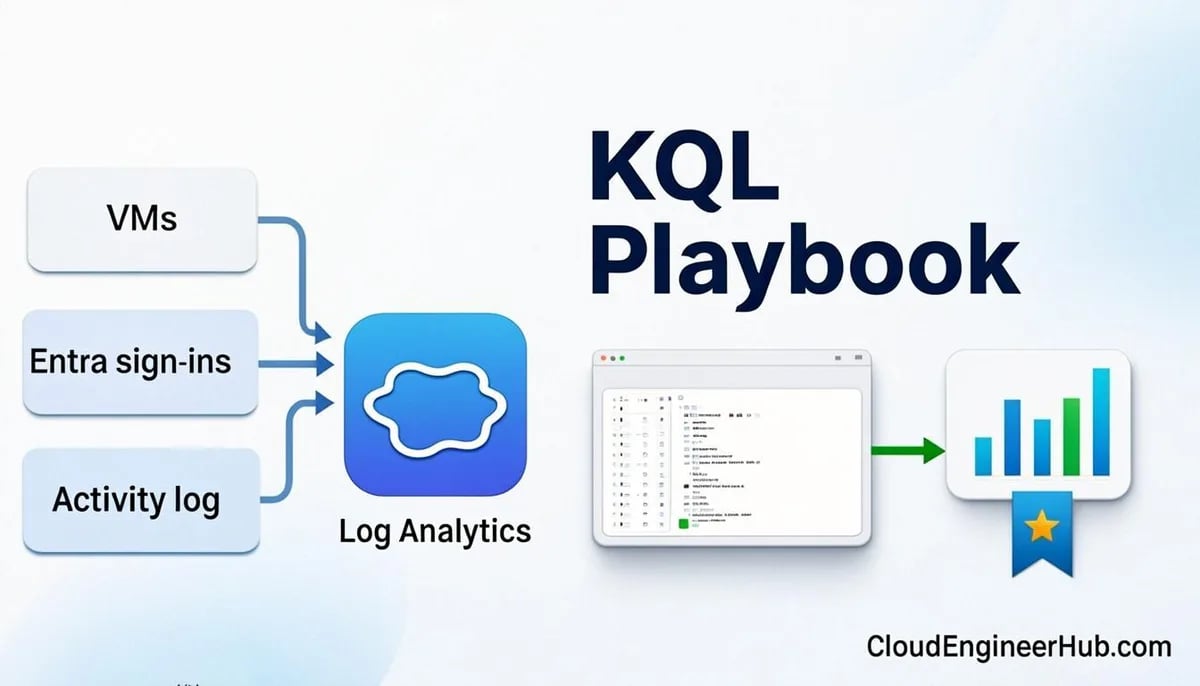
From diagnostic settings to alert rules: a practical Azure Monitor playbook for IT admins, with copy-paste KQL for agent health, failed sign-ins, and failed operations.
C
CloudEngineerHub Team
Published: August 25, 2026· Last Updated: September 24, 2026·10 min read
Azure Monitor & Log Analytics: A KQL Playbook for IT Admins
Azure Monitor is only as useful as the telemetry you wire into it. Most IT admins collect half of what they need, query a quarter of what they collect, and alert on even less — usually because the plumbing was built once by someone who left and nobody owns the queries. This playbook covers the pipeline end to end: get data into a Log Analytics workspace, learn the KQL queries that earn their keep, and wire alerts that page humans instead of generating noise.
Visual Walkthrough
The professional investigation loop every troubleshooting post assumes.
Client log, service-side report, or event channel — one at a time.
filter
2
Filter to the window
Timestamps first: start where the failure actually happened.
correlate
3
Correlate across layers
Client ↔ service ↔ event logs agree on the same story?
hypothesis
4
Form one hypothesis
State it falsifiably: "detection ran before install finished".
verify
5
Verify in clean test
Reproduce in a pilot device with logs open — then generalize.
6
Document the fix
Runbook entry: symptom → root cause → durable fix.
Log Triage Method — Collect, Filter, Correlate, Conclude. 1. Collect the right source: Client log, service-side report, or event channel — one at a time. — 2. Filter to the window: Timestamps first: start where the failure actually happened. — 3. Correlate across layers: Client ↔ service ↔ event logs agree on the same story? — 4. Form one hypothesis: State it falsifiably: "detection ran before install finished". — 5. Verify in clean test: Reproduce in a pilot device with logs open — then generalize. — 6. Document the fix: Runbook entry: symptom → root cause → durable fix.
C
CloudEngineerHub Team
Author
The CloudEngineerHub editorial team — Microsoft endpoint management and cloud engineers writing hands-on guides on Intune, Azure, Entra ID, Autopilot, Defender and PowerShell. Every article is reviewed against current Microsoft documentation.
An Azure subscription with a resource group for operations tooling (rg-ops in the examples).
Roles — Contributor on the resource group for workspace and diagnostic-settings work; Reader on the resources whose telemetry you will stream.
Az PowerShell — the examples use Az.Accounts, Az.OperationalInsights, Az.Monitor, and Az.Compute.
Cost reality check — Log Analytics is billed per GB ingested plus retention. Know your expected daily volume before turning on "everything," and note the legacy Log Analytics (MMA) agent is retired — guest telemetry now flows through the Azure Monitor Agent with Data Collection Rules.
A tenant admin for Entra logs — streaming Entra ID sign-in and audit logs requires configuring diagnostic settings at the tenant level in entra.microsoft.com.
How It Works
Every piece of operational telemetry in Azure funnels toward the same query surface:
Platform metrics — numeric time-series per resource, retained 93 days, free, visible on the Metrics blade. Good for alerting, poor for forensics.
Resource logs and the activity log — reach a Log Analytics workspace through diagnostic settings (per resource) and activity log export (per subscription). The activity log records every control-plane write (AzureActivity table); resource logs are per-service (StorageBlobLogs, AKSAudit, and friends).
Guest telemetry — the Azure Monitor Agent (AMA) collects Windows Event logs, Syslog, and performance counters, shaped by Data Collection Rules (DCRs) that declare which sources ship where. A VM with no DCR association collects nothing.
Entra ID logs — SigninLogs and AuditLogs export from entra.microsoft.com diagnostic settings into the same workspace, so one query surface covers infrastructure and identity.
The Log Analytics workspace is where all of this lands: a per-GB billed store queried with KQL. Interactive retention defaults to 31 days per table; every extra day is billed, while long-term archive is dramatically cheaper than keeping everything hot.
Step-by-Step Implementation
Step 1: Create the central workspace
One workspace per data boundary (production, non-production, sovereign data) — not per subscription. Multiple subscriptions can stream into the same workspace as long as they are in the same Microsoft Entra tenant.
Step 2: Wire diagnostic settings from every tier
For each resource that matters (VMs, storage accounts, Key Vaults, firewalls), create a diagnostic setting that sends resource logs and platform metrics to the workspace. Automate with Azure Policy deployIfNotExists — hand-configured settings are how you end up with four out of thirty VMs reporting.
Step 3: Connect Entra ID logs
In entra.microsoft.com → Monitoring & health → Diagnostic settings, export SignInLogs and AuditLogs to your workspace — the highest-value wiring decision in most admin teams' week: failed sign-in analysis and privileged-role changes land next to infrastructure telemetry.
Step 4: Deploy Azure Monitor Agent with a DCR for guest telemetry
Create one Data Collection Rule per source pattern (Windows security events, Linux Syslog, performance counters) and associate it with your VM fleets. Verify associations after deployment — an installed AMA extension still collects nothing if no DCR claims the VM.
Step 5: Set retention deliberately
Leave high-volume noisy tables at 31 days, extend security-relevant tables (SigninLogs, AuditLogs, Event) to 90–180 days of interactive retention, and push anything compliance-driven to the archive tier rather than paying interactive prices for data nobody queries daily.
Configuration Deep Dive
Table selection beats catch-all — prefer resource-specific tables (SigninLogs, Heartbeat, Perf, StorageBlobLogs) over the legacy AzureDiagnostics; the columns are typed, queries stay readable, and schemas stop breaking.
Query scope matters — workspace-centric queries see all tables; resource-centric queries see only that resource's data (and enforce its RBAC). Know which mode you are in before declaring data missing.
Daily caps — a daily cap is a cost circuit breaker, not a suggestion: when it trips, ingestion stops until the next day. Set caps on non-production workspaces and monitor them via the Usage table.
DCR transformations — Data Collection Rules can apply inline KQL transformations to drop noisy events before they are billed. Filtering at the DCR is the cheapest cost lever you have, because it prevents ingestion rather than archiving it.
Basic vs Analytics logs — Basic tables cost far less to query but support a reduced KQL surface. Route old audit tables you rarely query to Basic rather than deleting them.
The KQL Queries That Earn Their Keep
Agent health — servers that stopped checking in:
KUSTO
1
2
3
4
Heartbeat
| summarize LastSeen = arg_max(TimeGenerated, ComputerIP) by Computer
| where LastSeen < ago(15m)
| project Computer, LastSeen, ComputerIP
Failed sign-in bursts from Entra ID logs:
KUSTO
1
2
3
4
5
SigninLogs
| where TimeGenerated > ago(1d) and ResultType != "0"
| summarize Failures = count() by UserPrincipalName, ResultType, AppDisplayName
| where Failures >= 5
| order by Failures desc
Failed control-plane operations across the subscription:
KUSTO
1
2
3
4
AzureActivity
| where ActivityStatusValue == "Failed"
| summarize Count = count() by Caller, OperationNameValue, ResourceGroup
| order by Count desc
Who changed privileged role assignments this week:
KUSTO
1
2
3
4
5
AuditLogs
| where TimeGenerated > ago(7d) and OperationName has "member to role"
| extend InitiatedBy_ = tostring(InitiatedBy.user.userPrincipalName)
| extend Target_ = tostring(TargetResources[0].displayName)
| project TimeGenerated, OperationName, InitiatedBy_, Target_
Real-World Enterprise Scenario
A 6,000-employee logistics company ran "Azure Monitor" as a name, not a practice: one workspace received diagnostics from a random subset of resources, nobody knew whether Entra logs flowed anywhere, and alerts were three SMTP rules built against raw Heartbeat queries — a failing server generated 200 emails an hour, and a genuinely dead domain controller was discovered by a user.
The ops team rebuilt in a week: created law-prod with 90-day retention, deployed diagnostic settings via Azure Policy across all subscription resources, exported Entra sign-in and audit logs into the same workspace, and replaced the SMTP rules with five scheduled query alerts on severity-routed action groups. The payoff came in the first month — the failed sign-in query caught a credential-stuffing campaign against the VPN integration (79 failures across 41 accounts, all ResultType 50126), and the AzureActivity query exposed a service account whose ARM calls failed nightly, a broken automation nobody had noticed for weeks. The team's rule since: every alert must have killed a real incident, or it is deleted at the quarterly review.
Visual Walkthrough
From KQL query to on-call notification with automation on the tail.
Interactive FlowAzure Monitor Alerts — Signal to Action6/6
1
Telemetry ingested
Metrics and logs stream into Log Analytics workspace.
query
2
KQL shapes the signal
Query filters noise, aggregates by resource and threshold.
evaluate
3
Alert rule evaluates
Scheduled evaluation with stateful firing (fired/resolved).
notify
4
Action group fires
Email, SMS, webhook, ITSM — one group, many channels.
remediate
5
Automation responds
Logic App / runbook remediates or gathers diagnostics.
6
Closed with evidence
Alert history + job output stored for the RCA.
Azure Monitor Alerts — Signal to Action. 1. Telemetry ingested: Metrics and logs stream into Log Analytics workspace. — 2. KQL shapes the signal: Query filters noise, aggregates by resource and threshold. — 3. Alert rule evaluates: Scheduled evaluation with stateful firing (fired/resolved). — 4. Action group fires: Email, SMS, webhook, ITSM — one group, many channels. — 5. Automation responds: Logic App / runbook remediates or gathers diagnostics. — 6. Closed with evidence: Alert history + job output stored for the RCA.
Diagnostic setting missing or pointed at the wrong workspace
Check with Get-AzDiagnosticSetting; re-create the setting
SigninLogs empty despite users signing in
Entra diagnostic settings not configured at tenant scope
Configure in entra.microsoft.com, not the subscription's Azure Monitor
"Failed to resolve table 'X'"
Wrong query scope, or the table only exists for that resource type
Switch scope in the query editor; confirm the resource emits that table
Query times out or scans forever
No TimeGenerated filter, so every row is a candidate
Lead with the time filter and narrow the table before operators
Ingestion stops mid-day
Workspace daily cap reached
Raise or remove the cap; add DCR filters to cut volume
Perf/Event empty on new VMs
AMA installed but no DCR association
Associate the VMs with the data collection rule
Common Errors
Failed to resolve table — you queried a table that does not exist in the current scope. Resource-centric scoping is the usual culprit; the table list in the sidebar is your schema truth.
RequestDisallowedByPolicy — an Azure Policy assignment is blocking the diagnostic setting (commonly a destination restriction). The error body names the policy; fix the destination, not the policy, unless you own it.
Daily cap reached — ingestion pauses when the cap trips and resumes the next UTC day. Anything depending on real-time logs (alerts, Sentinel) goes blind; treat caps as a conscious risk decision.
"No results" with data obviously present — the time-range picker conflicts with an explicit TimeGenerated filter in the query. Pick one authority for time and keep them aligned.
Best Practices
Lead every query with the TimeGenerated filter — it is the difference between a 2-second and a 2-minute query on large tables.
Standardize diagnostic settings and DCR associations with Azure Policy deployIfNotExists instead of manual configuration.
Tune retention per table: interactive for what you query, archive for what you must keep, deletion for what you cannot justify.
Route alerts through action groups with severity mapping, and retire any alert that has not earned its keep in a quarter.
Keep a curated query pack in source control so the team's knowledge survives staff changes.
Check the Usage table weekly: ingestion by table is the fastest way to spot a diagnostic setting someone pointed at "AllMetrics" for a thousand resources.
Security Considerations
Workspace RBAC is its own attack surface: Log Analytics Reader for on-call, Contributor only for the platform team, and table-level RBAC where sign-in or audit data needs stricter access.
Sign-in logs contain IP addresses and user PII — align workspace retention and export with your privacy policy, and know the purge API for GDPR erasure requests.
Mirror security-relevant tables to a storage account with immutability policies for tamper-resistant audit trails.
Think before co-locating Microsoft Sentinel with a general ops workspace: unified is cheaper, but Sentinel access then implies access to all operational telemetry there.
Restrict who can modify diagnostic settings — redirecting log streams is a quiet way to blind a security team.
FAQ
What is the difference between Azure Monitor and Log Analytics?
Log Analytics is the workspace platform that stores and queries logs with KQL; Azure Monitor is the umbrella service that feeds it — metrics, resource logs, agents, DCRs, alerts, and insights all live under Azure Monitor's banner.
Can one workspace collect from multiple subscriptions?
Yes, as long as the subscriptions are in the same Microsoft Entra tenant. Organize workspaces by data boundary and access model, not by subscription idiosyncrasy.
Basic vs Analytics log tables — when do I switch?
Move tables you query rarely and never chart (old audit data, compliance archives) to Basic logs for cheap retrieval, and keep interactive, security-relevant tables on Analytics pricing where full KQL matters.
How do I cut the bill quickly without losing visibility?
Add DCR transformations to drop noise before ingestion, trim diagnostic-settings categories per resource, and push cold tables to archive. Retention tuning is usually the fastest single saving.
Conclusion
Azure Monitor rewards plumbing discipline: a deliberate workspace strategy, diagnostic settings deployed by policy instead of memory, DCRs that filter before they bill, and a short list of KQL queries that answer real questions. Get those right and alerting stops being guesswork — get them wrong and your monitoring is a monthly bill with no memory.


Comments
0No comments yet — be the first to share your thoughts.